Notes on Issues with Booking.com Integration
When using Hostex to integrate with Booking.com, you may encounter the following situations:
I. Reason for Hostex Prompt “Connection not yet complete” when adding a Booking.com account
This message appears because authorization for Hostex has not been completed on the Booking.com platform. Please follow these steps:
- Authorize Hostex on Booking.com Log in to Booking.com → Navigate to the Connectivity Provider page. Authorize Hostex to access your Booking.com Listing data.
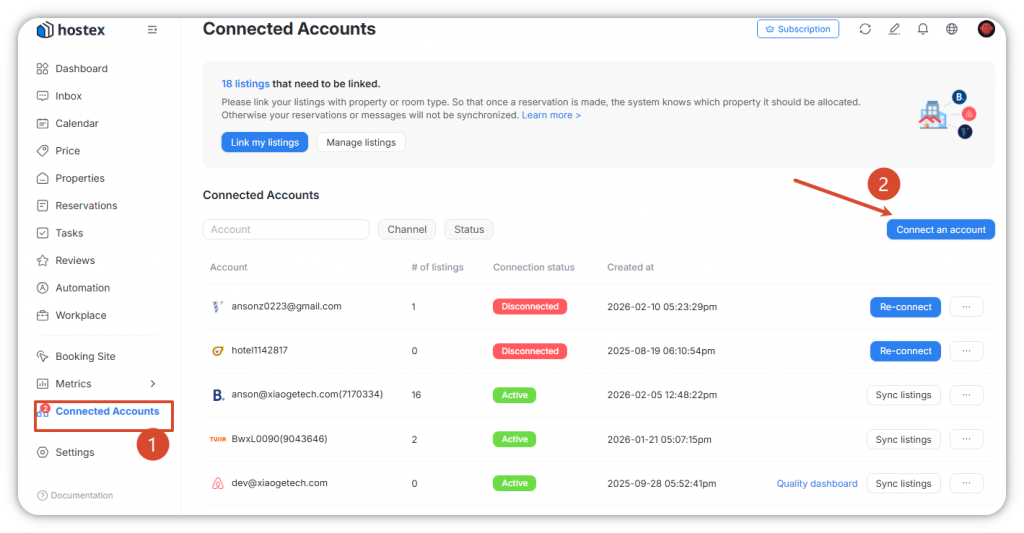
- Connect the account in Hostex Log in to Hostex → Open Connected Accounts. Click Connect an account → Select Booking.com. Enter your Booking.com login account and property ID.
- Complete Hostex Property and Booking.com Listing mapping After a successful connection, map your Hostex Property to its corresponding Booking.com Listing to ensure smooth data synchronization.
II. Why prices show as 0 after adding a Booking.com Listing, and Booking.com indicates closed or not accepting reservations
After a successful connection, Booking.com will clear the previous price settings of your Booking.com Listing. You must immediately set new prices for your Booking.com Listing by following these steps:
- Go to the Price Calendar in your Hostex account.
- Click on any date of the Listing’s Rate Plan.
- Select the dates you want to make available for bookings.
- Set a price for those selected dates.
- Save your changes.
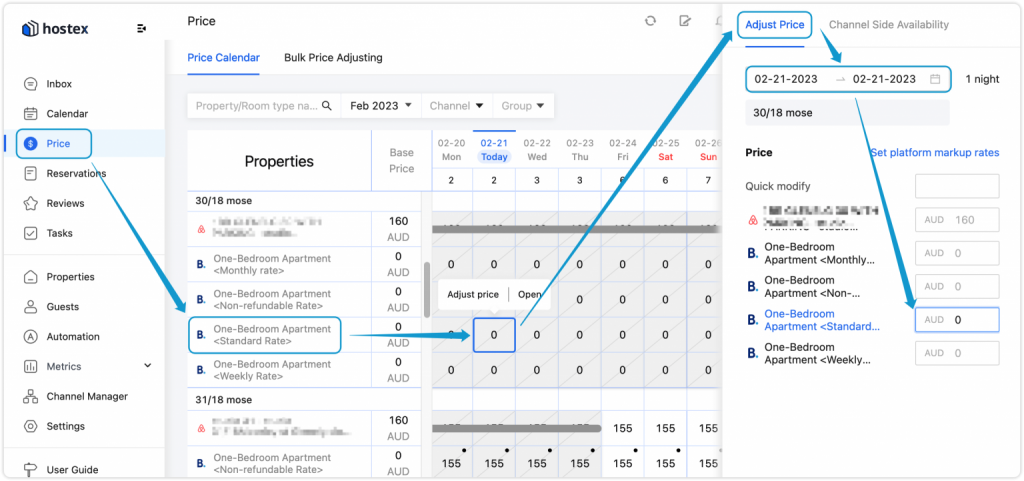
Reservations can only be accepted after price and availability settings are completed.
III. Why a Booking.com Listing still cannot be booked after setting prices in Hostex
After you set prices for your Booking.com Listing in Hostex, Booking.com requires a price review, which takes approximately 24 hours. The Booking.com Listing will only be available for booking once the review is approved.
IV. Why multiple Booking.com Listings appear after syncing to Hostex ?
Booking.com Listings are synced to Hostex by rate plan.
For example Booking.com Listings with different rate plans (e.g., standard, weekly, monthly). When synced to Hostex, these will appear as multiple Booking.com Listings labeled with their respective plans. Simply map all these Booking.com Listings to the same Hostex Property for unified management.
V. Why newly added Booking.com Listings do not show up after syncing to Hostex
The Booking.com integration is added by Hotel ID. If you manage multiple Booking.com Listings with different Hotel IDs, each Hotel ID must be added separately in Hostex. When adding a new Booking.com Listing, if the Hotel ID corresponding to the Booking.com Listing is not added to Hostex, the Listing will not be synced successfully. You must enter its corresponding Hotel ID in Hostex, then complete the mapping between the new Booking.com Listing and your Hostex Property, and set the relevant prices.
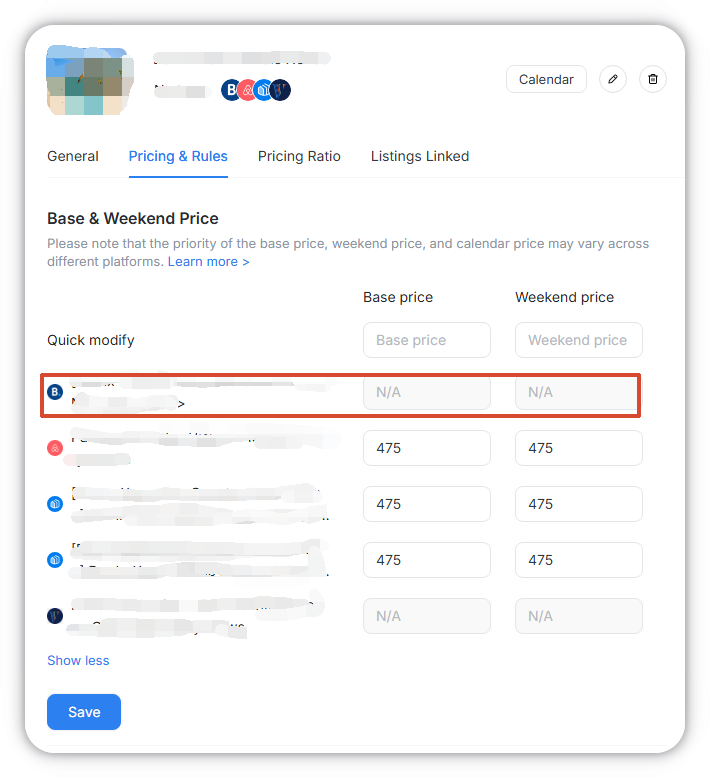
VI. Why “N/A” appears when setting base price and weekend price for a Booking.com Listing
Platforms including Booking.com, Vrbo, Expedia, Houfy, Agoda, and Trip.com do not use the concept of a base price for their Listings, which also applies to the Hostex Property linked to the Booking.com Listing. If you have previously modified the calendar price of the Booking.com Listing, changing the base price or weekend price will not override the synced calendar price of the Booking.com Listing. Calendar prices of the Listing have the highest priority. It is recommended to bulk-modify prices for specific dates on the price page in Hostex.
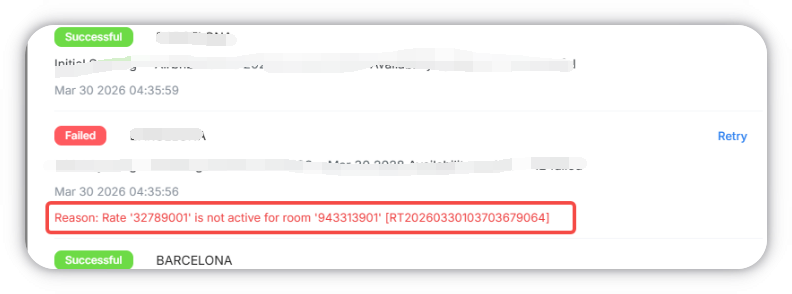
VII. Why Booking.com Listing sync fails with the error: “Rate ‘xx’ is not active for room ‘x’”
The error “Rate is not active for room” indicates that the Booking.com Listing or its corresponding rate plan no longer exists on Booking.com.
Solution:
If you have deleted or modified the rate plan on Booking.com, reload the corresponding Booking.com account in the Connected Accounts page in Hostex. After syncing the latest data of the Booking.com Listing, this error will disappear.
If you modify a Booking.com Listing or its rate plans on Booking.com, please find the corresponding account in Hostex’s Connected Accounts and click Sync Listings to ensure Hostex retrieves the latest information of the Booking.com Listing and maintains consistent data.
 English
  Chinese