How to Change Currency for Trip Listings
To ensure price synchronization between Trip and Hostex platforms, you need to make sure that both platforms use the same currency. Here are the simple steps for changing currency:
Scenario 1: Resetting the Currency (Change currency on both Trip and Hostex)
If you need to completely change the currency for your listing, follow these steps:
1. Change Currency on the Trip Platform:
- Log in to the Trip platform.
- Change the currency for your listing.
2. Change Currency on Hostex:
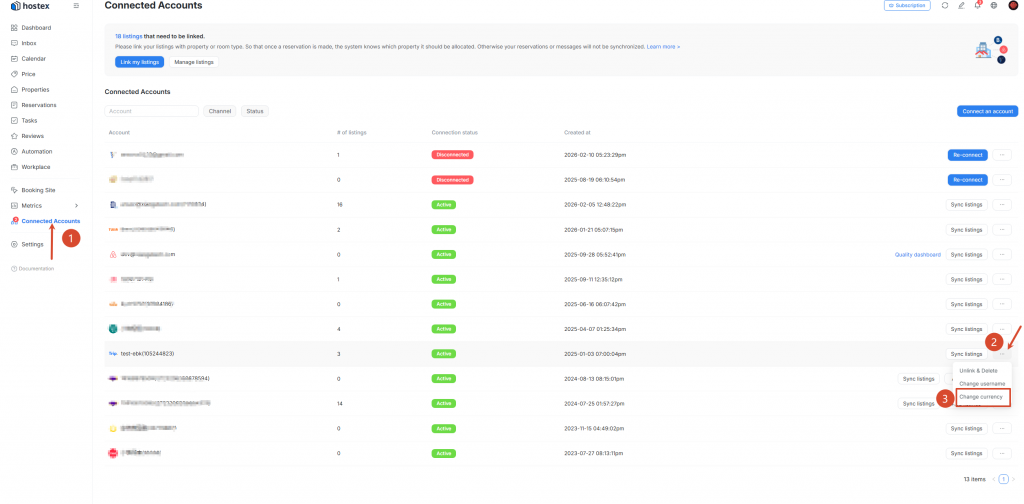
- Log in to Hostex and go to the “Connected Accounts” page.
- Find your Trip account and click the 【…】 button next to it.
- Select “Change currency”.
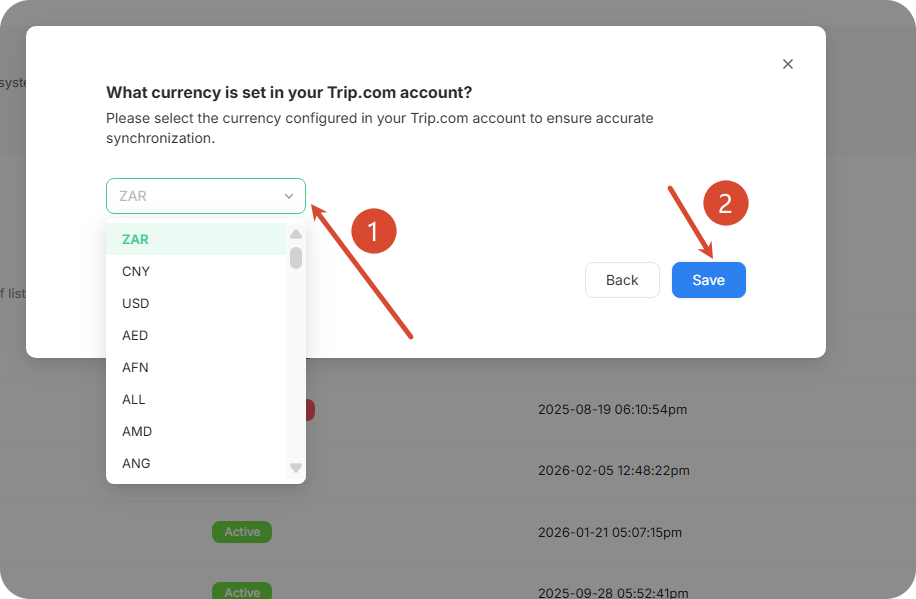
- In the pop-up window, choose the new currency and click Save.
Scenario 2: Only Change Hostex Currency to Match Trip
If only the Hostex currency does not match the Trip currency, you can simply modify Hostex’s currency:
Change Currency on Hostex:
- Log in to Hostex and go to the “Connected Accounts” page.
- Find your Trip account and click the 【…】 button next to it.
- Select “Change currency”.
- Choose the currency that matches Trip and click Save.
Important Notes:
- Wait for Updates: After changing the currency, it may take some time for the prices to update across all platforms. Please be patient.
- Check Prices: After making the changes, double-check that the prices on both Trip and Hostex display correctly.
- Order Matters: Always change the currency on Trip first, then adjust it on Hostex to avoid currency mismatch issues.
 English
  Chinese