How to Connect Your Vrbo Account to Hostex
Vrbo has recently updated its connection and authentication process. As a result, Hostex now supports Vrbo connections through our official Google Chrome Extension to securely connect your Vrbo account.
This guide will walk you through every step in detail, even if you have no technical background.
🚨 Note: Desktop/laptop required! 🚨
You must connect your Vrbo account on a computer or laptop!
Chrome extensions don’t work on mobile devices, such as iPads, iPhones, tablets, etc.
Before You Start (Important)
Please make sure all of the following are true before continuing:
- You are using a desktop or laptop computer
- You have Google Chrome installed, not Safari, Edge, or Firefox
- You can log in to your Hostex account and your Vrbo Owner account (not a traveler/guest account)
Step 1: Install the Hostex – Vrbo Connection Chrome Extension
- Open Google Chrome
- Visit the Chrome Web Store link for the extension
- Click “Add to Chrome” (top right)
- Click “Add extension” in the confirmation window
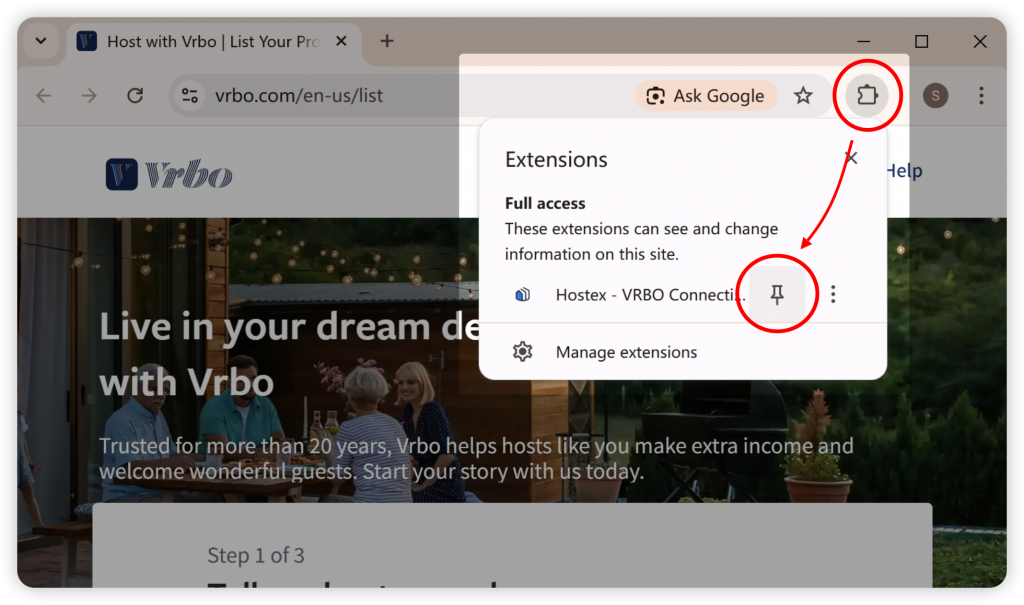
- Click the Puzzle icon in the top-right corner of Chrome and pin the Hostex extension for easier access.
Step 2: Log In to Your Hostex Account
- In the same Chrome browser, open a new tab
- Go to Hostex and log in with your Hostex account
- Keep this tab open
⚠️ Important
The Hostex account you are logged into must be the one you want to connect to Vrbo.
Step 3: Log In to the Vrbo Account You Want to Connect
- Open another new tab in the same Chrome browser
- Go to the Vrbo Owner Dashboard
- Log in to your Vrbo Owner account
- Click to enter the Account Settings in the Vrbo dashboard
Step 4: Connect Vrbo to Hostex Using the Extension
This is the most important step.
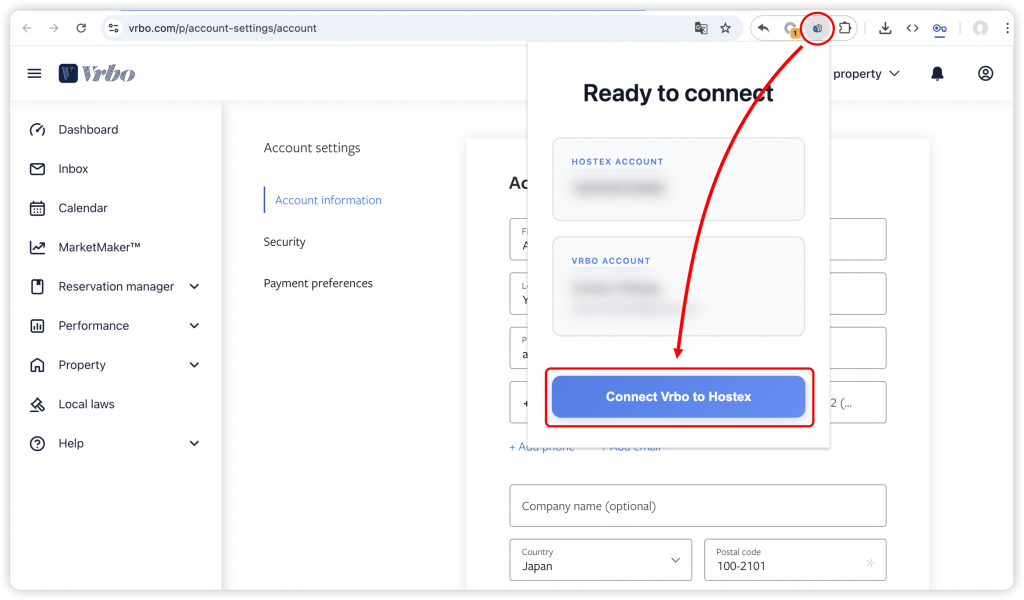
- Click the Hostex – Vrbo Connection extension icon in your Chrome toolbar
- Click Connect Vrbo to Hostex
- The extension will securely authorize the connection in seconds
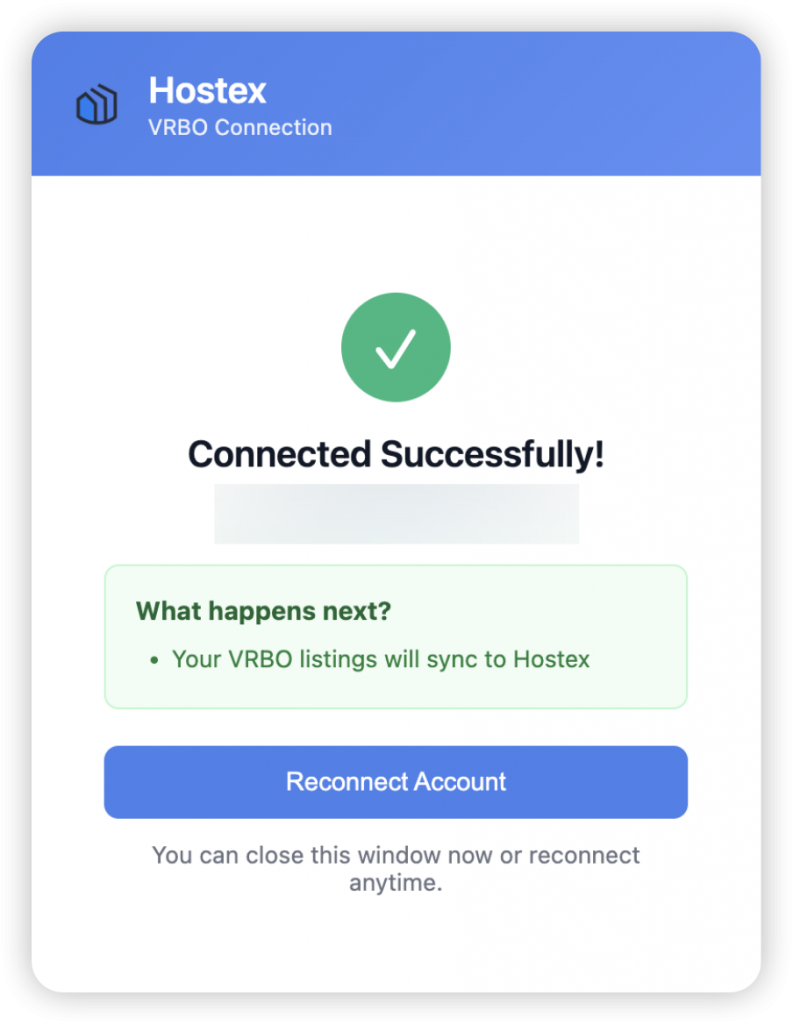
You should now see Vrbo listed as Connected in Hostex.
❌ Do not log out of Vrbo once you’ve authorised access.
The connection will only stay active as long as you’re logged in. Logging out will disconnect Vrbo from Hostex.
Step 5: Connecting Multiple Vrbo Accounts (If Needed)
If you want to connect more than one Vrbo account, you must use separate Chrome profiles.
Why this is required
- Chrome profiles keep login sessions separate
- Vrbo does not allow multiple owner sessions in one profile
- This prevents connection conflicts and disconnections
How to do this?
It is quite simple:
- In Chrome, click the profile icon (your profile picture) in the top-right corner
- Click “Add” to create a new Chrome profile
- Chrome opens a new Chrome window for this profile
- Repeat steps 1 ~ 5
🚨 Note: 🚨
You’ll need to stay logged in to each Vrbo account in each Chrome profile for Hostex to continue syncing with Vrbo.
Important Notes
1. It may take some time (up to 2 hours) for Hostex to fully sync with your new Vrbo listing’s calendar, receive all reservation information from Vrbo, and block those on other booking platforms.
2. If you log out of your Vrbo account in Chrome or Vrbo logs you out automatically, you will need to reconnect following the steps.
3. Avoid frequently logging in and out of Vrbo.
 English
  Chinese