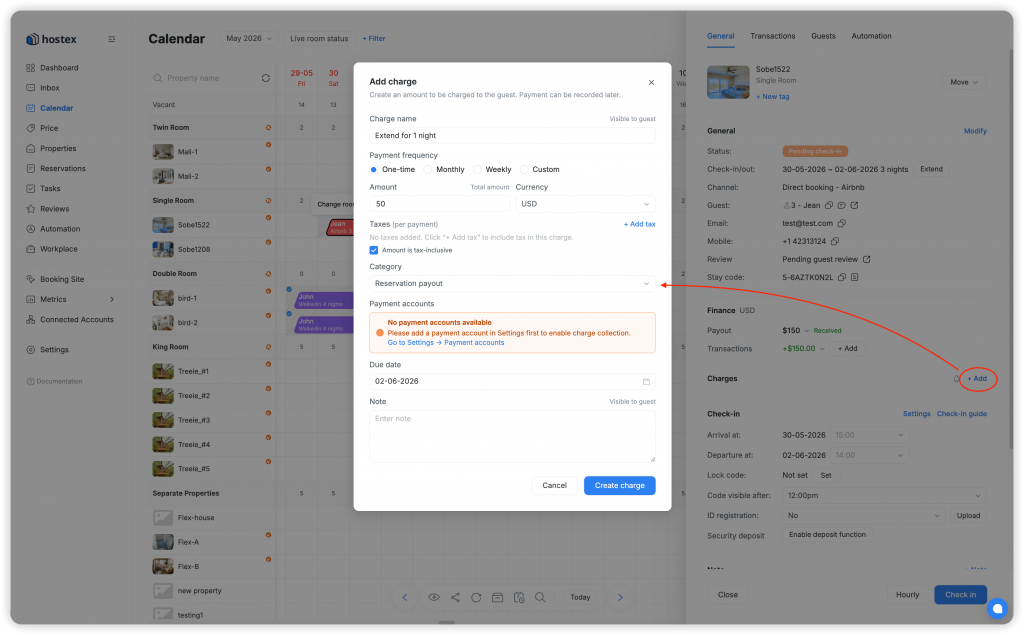
如何为预订添加费用
The Charges module is located in every reservation detail page, below the 金融 tab. Each charge has its own payment status and can be sent to guests for online payment through Hostex’s branded payment page.
What Charges Can Do
- ✅ Create one-time or recurring fees
- ✅ Send branded payment links to guests via email, SMS, or WhatsApp
- ✅ Track payment status (Unpaid → Partially Paid → Paid → Overdue)
- ✅ Apply taxes to charges
- ✅ Process refunds
- ✅ Automate payment reminders with notification rules
Step-by-Step: Creating a Charge
Step 1: Open the Charges Tab
- Open any reservation detail page
- Scroll down past the 金融 标签页
- 点击 Charges 标签页
💡 First time? If no charges exist yet, the tab shows only the title bar and the “+ Charge” button. No placeholder text — just a clean starting point.
Step 2: Click “+ Charge”
- 点击 “+ Charge” 按钮
- 这 Add Charge popup appears
Step 3: Choose a Charge Type
The type determines the payment structure:
| Type | Best For | 工作原理 |
|---|---|---|
| One-time Charge | Cleaning fees, damage, cancellation fees | Single payment, one due date |
| Recurring → Weekly | Weekly service fees | Auto-generates weekly instances |
| Recurring → Monthly | Monthly utilities, parking | Auto-generates monthly instances |
| Custom Charge | Flexible charges with custom naming | Manual amount and naming |
⚠️ Category lock: Once a charge is created, its type cannot be changed. If you need a different type, delete the charge and create a new one.
Step 4: Fill in the Charge Details
The Add Charge form includes these fields:
| 场地 | 描述 | Required? |
|---|---|---|
| Charge Name | Describes what this charge is for (e.g., “Cleaning Fee”, “Extra Guest Fee”) | ✅ Required |
| Category | Select the charge type (One-time, Weekly, Monthly, Custom) | ✅ Required |
| Amount | The amount you want to collect | ✅ Required |
| 货币 | Automatically matches the reservation currency | Auto-set |
| Due Date | When payment is expected (one-time charges) | ✅ Required |
| Frequency | For recurring charges: Weekly or Monthly | Required for recurring |
| 税 | Add tax to the charge amount (details below) | Optional |
| Payment Account | Choose which connected account receives payment | ✅ Required |
| 笔记 | Internal notes about this charge | Optional |
Understanding Charge Types in Detail
One-time Charge
Use for: Single, one-off payments
例子:
- Charge Name: “Damage Compensation”
- Amount: $200.00
- Due Date: June 15, 2026
Behavior: Guest pays once, charge is marked complete.
Tax Location: Tax configuration appears directly below the amount/currency fields.
Recurring Charge (Weekly / Monthly)
Use for: Payments that repeat on a schedule
Example (Weekly):
- Charge Name: “Weekly Linen Service”
- Amount: $50.00 per week
- Runs for the duration or a set number of instances
Example (Monthly):
- Charge Name: “Monthly Parking Fee”
- Amount: $100.00 per month
Behavior: The system generates individual instances for each period. Each instance has its own payment status and due date.
Tax Location (Recurring): Tax configuration appears within the frequency expansion area, below the instance list.
Custom Charge
Use for: Charges that don’t fit the standard categories
例子:
- Charge Name: “Late Check-out Penalty”
- Amount: $75.00
Behavior: Same flexible workflow as one-time. Custom naming gives you full control.
⚠️ Custom Charge – Tax: Does 不是 display an estimated tax amount. Tax calculations for custom charges are handled differently.
Managing Recurring Charges: Instances
When you create a recurring charge, the system generates a set of instances — one per period.
Viewing Instances
- In the Charges list, click on a recurring charge row
- The charge detail drawer opens, showing all instances in a list
- Each instance shows:
- Period (e.g., “Week 1: Jun 10 – Jun 17”)
- Amount
- Due date
- Payment status
Instance States
| Status | 描述 |
|---|---|
| Unpaid | Instance not yet paid |
| Paid | Instance fully paid |
| Overdue | Past due date, unpaid |
Adding Tax to a Charge
How Tax Works
You can add tax to any one-time or recurring charge. The system supports percentage-based or fixed-amount tax.
Tax Configuration
In the Add Charge (or Edit Charge) popup:
- 找到 税 section:
- 为了 One-time Charges: Below the amount/currency fields
- 为了 Recurring Charges: Inside the frequency expansion area, below the instance list
- Enter:
- Tax Name: e.g., “VAT”, “Sales Tax”, “GST”
- Tax Rate (%): The percentage to apply
- Tax Amount: Auto-calculated based on rate; you can also enter a fixed amount
- The tax is automatically added to the total amount shown to the guest
📊 Invoice Display: Taxes appear as a separate line item on the Invoice, clearly showing the breakdown.
Charge Payment Status Tracking
Every charge has a status that updates automatically:
| Status | Icon | Meaning | How It Changes |
|---|---|---|---|
| Unpaid | 🔴 | No payment received yet | Default for new charges |
| Partially Paid | 🟡 | Some payment received but balance remains | When partial payment is recorded |
| Paid | 🟢 | Fully paid | When total amount received |
| Overdue | 🔴 | Past the due date with unpaid balance | Automatically when due date passes |
📌 Status tooltip: Hover over any status badge to see the exact amount paid vs. total, with monetary display.
Collecting Payment from Guests
Step 1: Click “Collect”
- In the Charges tab, find the unpaid charge
- 点击 “Collect” button on that charge
Step 2: Choose How to Send the Payment Request
The Collect Payment popup offers these channels:
| 渠道 | Available On | Details |
|---|---|---|
| Platform Message | All versions | Editable template sent through OTA messaging |
| All versions | Full customization: Subject, Sender Name, Content | |
| SMS | International only | Fixed system template, requires wallet balance |
| International only | Custom message, requires wallet balance |
🔴 Balance Required: SMS and WhatsApp require sufficient wallet balance. If balance is ≤ 0, a red warning appears with a “Recharge” link.
Step 3: Customize Your Message
For Email:
- Edit the Subject line (e.g., “Payment Request for Your Stay at Sunny Villa”)
- 设置 Sender Name (e.g., “Sunny Villa Management”)
- Write the Content — use the rich text toolbar to format your message
- Insert Shortcodes to personalize:
| 简码 | What It Inserts |
|---|---|
{{guest_first_name}} | Guest’s first name |
{{guest_name}} | Guest’s full name |
{{property_name}} | Property name |
{{charge_name}} | Name of the charge |
{{charge_amount}} | Amount with currency symbol |
{{stay_code}} | Reservation stay code |
{{check_in_date}} | 入住日期 |
{{check_out_date}} | 退房日期 |
{{payment_link}} | The payment URL the guest clicks |
⚠️ Currency format: 这
{{charge_amount}}shortcode must include a distinguishable currency symbol so guests can immediately identify the currency.
Step 4: Select Recipients
Choose who receives the payment request:
- Booker — The person who made the reservation
- Guest — Additional guests associated with the booking
You can select multiple recipients to send to both at once.
Step 5: Preview and Send
- 点击 “Preview” to see exactly what the message will look like
- Verify the payment link works
- 点击 “Send” to deliver the payment request
Manual Payment Recording
If the guest paid you outside Hostex (cash, bank transfer, etc.):
- In the Collect Payment popup, select “Manual” (Record Payment)
- Add transaction details:
- Amount received
- Payment method (Cash, Bank Transfer, etc.)
- Transaction date
- 点击 “Record”
The payment is recorded in the Transactions list and linked to the charge.
Editing a Charge
To modify an existing charge:
- Click on the charge in the Charges tab to open the detail drawer
- 点击 “编辑” 按钮
- You can modify:
- Charge Name
- Amount
- Due Date (for one-time charges)
- Recurrence settings (for recurring charges)
- 税
- Payment Account
- 笔记
- 点击 “Save”
🔄 Notification recalculation: When you edit a charge, any related notification rules are recalculated — but already-sent notifications are not affected.
Deleting a Charge
- Open the charge detail drawer or edit popup
- 点击 “Delete” 底部的按钮
- Confirm in the popup
- The charge and any associated pending payment links are removed
⚠️ Cannot undo. Deleted charges cannot be recovered. Make sure the charge really isn’t needed before deleting.
Processing a Refund
When to Refund
- Guest overpaid or paid twice
- Charge was created in error
- Partial refund needed due to a discount or dispute
How to Process a Refund
There are two paths depending on the payment method:
Option A: Refund from Online Payment (Stripe/PayPal)
- In the Transactions list, find the income record linked to the charge
- 点击 “Refund” button next to that transaction
- The refund popup shows:
- Original payment details (payment method, link to Stripe transaction)
- Refund Amount field (max = original amount minus already refunded)
- Notes field
- Enter the refund amount and submit
- The refund is processed through the connected payment provider
Option B: Refund for Manual Transactions (Cash/Bank Transfer)
- Same workflow — but the refund method defaults to “Bank transfer”
- Select the appropriate refund method
- 点击 “Refund”
Refund Rules
| Rule | Detail |
|---|---|
| Refund Limit | Cannot exceed (Original Amount − Already Refunded) |
| Refund Visibility | The refund button is always visible on income rows with amount > 0 |
| Platform Fee Note | Online payment refunds may include a note about platform processing fees |
Deleting a Transaction (NOT a Charge Refund)
If you need to remove a transaction entirely (wrong entry, duplicate):
- In the Transactions list, click on the transaction
- 点击 “Delete”
- Confirm deletion
⚠️ Deleting a transaction is different from a refund. A refund creates a new negative entry; deleting removes the record entirely.
Charge Notification Rules (Auto-Reminders)
Configure what triggers automatic payment reminders, and to whom.
Location
- In the reservation detail → Charges 标签页
- Click the notification icon in the top-right corner of the Charges tab
Default Notification Rules
Hostex comes with 4 pre-configured notification rules:
| Rule Trigger | 渠道 | Applies To |
|---|---|---|
| Charge Created | Configured per rule | Selected charge categories |
| Before Due Date | Configured per rule | Selected charge categories |
| After Due Date (Overdue) | Configured per rule | Selected charge categories |
| Payment Received | Configured per rule | Selected charge categories |
Customizing Notifications
For each rule you can configure:
- 什么时候 the notification sends (relative to charge creation or due date)
- Which channels to use (Platform message, Email, SMS, WhatsApp)
- Which charge categories trigger this notification (select from your custom categories)
- Message content — subject, sender name, and body with shortcode support
Host Notifications (In-App & Push)
Stay informed about charge payments with host-facing notifications:
Types of Host Notifications
| 通知 | Default Channels | 描述 |
|---|---|---|
| Payment Received | In-App ✅, Push ✅, Email ⬜ | Alert when a guest completes payment |
| Payment Overdue | In-App ✅, Push ✅, Email ⬜ | Alert when a payment passes its due date |
Where to Configure
Settings → Push & Notifications → below the HostGPT section
💡 You can enable/disable email notifications separately. In-App and Push are on by default.
Charges Quick Reference
| Task | Location | 行动 |
|---|---|---|
| Create charge | Reservation → Charges → + Charge | Fill form → Save |
| Edit charge | Click charge → Edit | Modify → Save |
| Delete charge | Click charge → Delete | Confirm |
| Collect payment | Click charge → Collect | Choose channel → Send |
| Record manual payment | Click charge → Collect → Manual | Enter details → Record |
| View instances (recurring) | Click recurring charge row | Expand to see instances |
| Process refund | Transactions list → Click Refund | Enter amount → Submit |
| Set notifications | Charges tab → notification icon | Configure rules |
Questions about charges? Contact our support team — we’re happy to help!