如何向客人开具发票
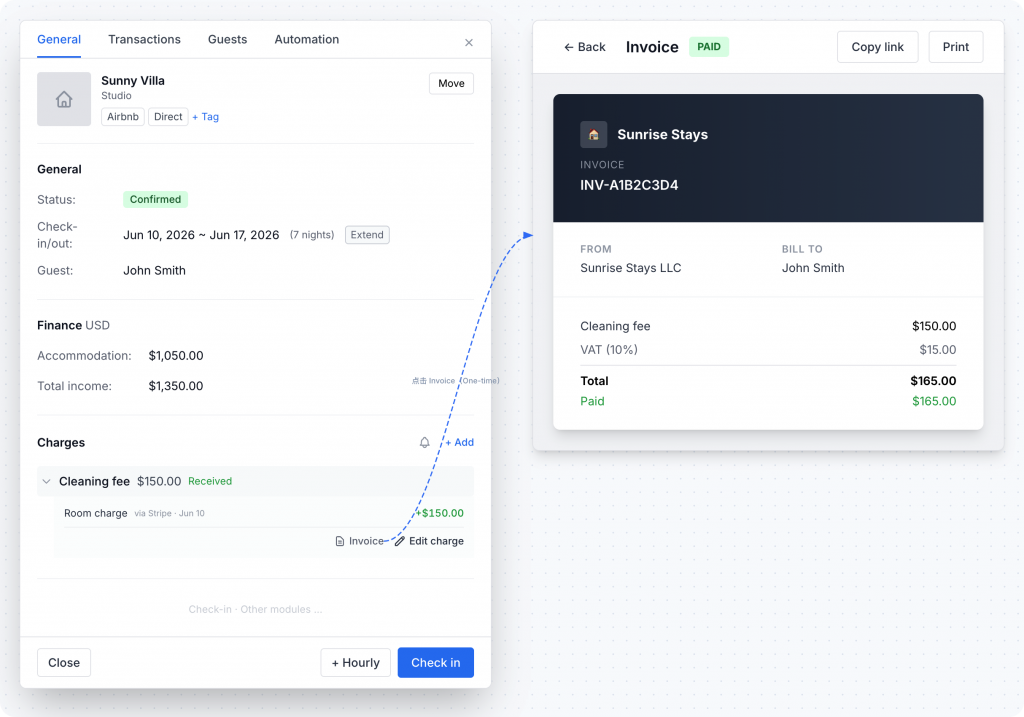
The Hostex Invoice system is built directly into the Charges and Payment workflow. Every charge automatically generates a unique invoice that your guests can view and download when they make a payment.
Key Principles
| Principle | Detail |
|---|---|
| One Charge = One Invoice | Each charge has its own unique Invoice ID — invoices are generated at the charge level |
| Invoice ID is Unique | A unique code is generated per charge (e.g., INV-001) |
| Available When Paid | Guests can view and download their invoice after payment |
| Invoice Includes Taxes | Tax amounts appear as separate line items on the invoice |
Step-by-Step: Issuing an Invoice
Step 1: Create the Charge
Before an invoice can exist, you need a charge:
- Open the reservation → Charges 标签页
- 点击 “+ Charge”
- Fill in the charge details (name, amount, due date, etc.)
- If applicable, configure 税 in the Add/Edit Charge popup
- 点击 节省
💡 See our guide “How to Add a Charge to a Reservation” for complete charge creation steps.
Step 2: Send the Payment Request
- In the Charges tab, click “Collect” on the charge
- Choose your channel (Email, Platform Message, SMS, or WhatsApp)
- Include the
{{payment_link}}shortcode in your message - Send the payment request
The guest clicks the link and lands on the Hostex Payment Page.
Step 3: Guest Views and Downloads the Invoice
On the Hostex Payment Page, the guest can:
- See the Invoice Preview at the top of the payment page
- Review their payment details before paying
- After successful payment, access and download the Invoice directly from the payment confirmation screen
📄 The invoice is available as a downloadable file (PDF format) from the payment page.
What the Invoice Contains
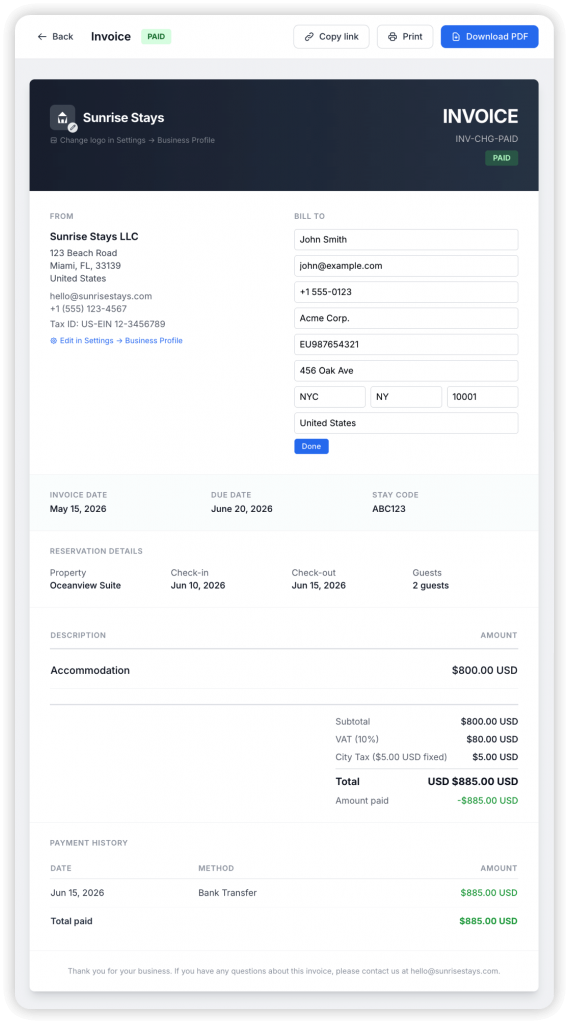
The Hostex Invoice includes a professional layout with all essential details:
Invoice Header
| 场地 | Content |
|---|---|
| Invoice Number | Unique ID (e.g., INV-001) |
| Invoice Date | Date the invoice was generated |
| Due Date | Payment due date |
| Stay Code | Reservation reference number |
From / To
| Section | Details |
|---|---|
| From | Your business name and address (from Settings → Business Profile) |
| To | Guest name and contact details |
🏷️ Brand Logo: Customize your invoice by uploading a brand logo in Settings → Business Profile. The logo appears on the invoice header.
预订详情
The invoice lists the reservation information:
- Guest name
- Property name
- Check-in / Check-out dates
- Number of guests
Payment Summary
The invoice includes a detailed payment breakdown:
| Line Item | 描述 |
|---|---|
| Charge Name | The charge description (e.g., “Cleaning Fee”) |
| Subtotal | Base charge amount before tax |
| Tax (if applicable) | Tax name and amount (e.g., “VAT 10% – $15.00”) |
| Total | Full amount owed |
📊 Tax Display: Taxes appear as a separate line item, clearly labeled with the tax name and rate you configured.
Status Badge
The invoice shows the current payment status with a colored badge:
| Status | Badge Color | 描述 |
|---|---|---|
| Received | 🟢 Green | Fully paid |
| Partial | 🟡 Amber | Partially paid |
| Unpaid | 🔴 Red | Payment not received |
| Excess | 🔵 Blue | Overpaid (guest paid more than owed) |
Managing Multiple Invoices
One Reservation, Multiple Invoices
Since each charge generates its own invoice, a reservation can have multiple invoices:
| Scenario | Invoices Created |
|---|---|
| One charge for cleaning | 1 invoice |
| Cleaning + damage charge | 2 invoices (one per charge) |
| Recurring weekly charge | 1 invoice per paid instance |
Finding a Specific Invoice
- Open the reservation → Charges 标签页
- Locate the charge you need
- Click on the charge to open its detail drawer
- The invoice is linked to this charge — you can view it from the payment page
Copying and Sharing the Invoice Link
For the Host (You)
- On the reservation detail page, find the charge
- 点击 “Copy link” button (chain-link icon)
- The invoice/payment page URL is copied to your clipboard
- Share the link with your guest through any channel you prefer
Invoice and Tax Configuration
Setting Up Taxes on Invoices
Tax must be configured on the charge level — not on the invoice directly:
- When creating or editing a charge, locate the 税 section
- Add your tax name and rate
- The tax amount auto-calculates and appears on:
- The payment page summary
- The invoice as a separate line item
Branding Your Invoice
Make your invoice look professional by setting up your business identity:
- 转至 Settings → Business Profile
- Upload your Brand Logo
- Fill in your business name and address
- These details appear in the “From” section of every invoice
重要提示
⚠️ Invoice ID Generation
- The Invoice ID is generated per charge, not per reservation
- If you create multiple charges for one reservation, each gets a separate Invoice ID
- Deleting a charge also removes its associated invoice records
💰 Partial Payments
- If a guest makes multiple partial payments, the invoice reflects the cumulative total
- The invoice status updates as payments are received
🌐 Language and Format
- Invoices are generated in the format matching your Hostex account language settings
- Dates are displayed in locale-appropriate formats
常见问题
Q: Can I create an invoice without creating a charge?
一个: No — invoices in Hostex are tied to charges. Every invoice requires a charge as its source.
Q: What if the guest needs a VAT receipt specifically?
一个: Configure VAT (or any tax) when creating the charge. The tax amount appears as a separate line on the invoice, which serves as a VAT receipt.
Q: Can I customize the invoice number format?
一个: Yes — invoice IDs are generated at the charge level with a unique code. You can configure the ID format in your settings.
Q: Can I email the invoice directly without sharing a link?
一个: When you use the Email option in 收取款项, the email includes the payment link. The guest clicks it, views the invoice, and can download it.
Q: How do I handle an invoice for a manually recorded cash payment?
一个: Even for manually recorded payments, you can generate a charge, mark it as paid, and provide the guest with the invoice through the payment page.
Q: Does Hostex automatically send invoices?
一个: Invoices are accessible through the payment page link. You can include this link in automated messages using the {{payment_link}} shortcode.
Quick Reference
| Task | 步骤 |
|---|---|
| Create an invoice | Create a charge → Add tax (optional) → Collect payment → Send payment link |
| Find an invoice | Reservation → Charges → Click charge → View payment page |
| Share an invoice | Click “Copy link” on charge → Send URL to guest |
| Brand your invoices | Settings → Business Profile → Upload logo + add business details |
| Add tax to invoice | Edit charge → Configure tax → Tax appears on invoice |
| Download invoice | Available to guest on the payment page after payment |
Questions about invoicing? Our support team is here to help at support@hostex.io or through the in-app chat.