How to Issue an Invoice to Your Guest
Hostex supports Invoice pages for charges. An Invoice is a shareable billing document that guests can open from a link, view online, and print or download.
Open the Invoice
Before you start, make sure the reservation has a charge. If no charge exists yet, create one from the reservation detail page first.
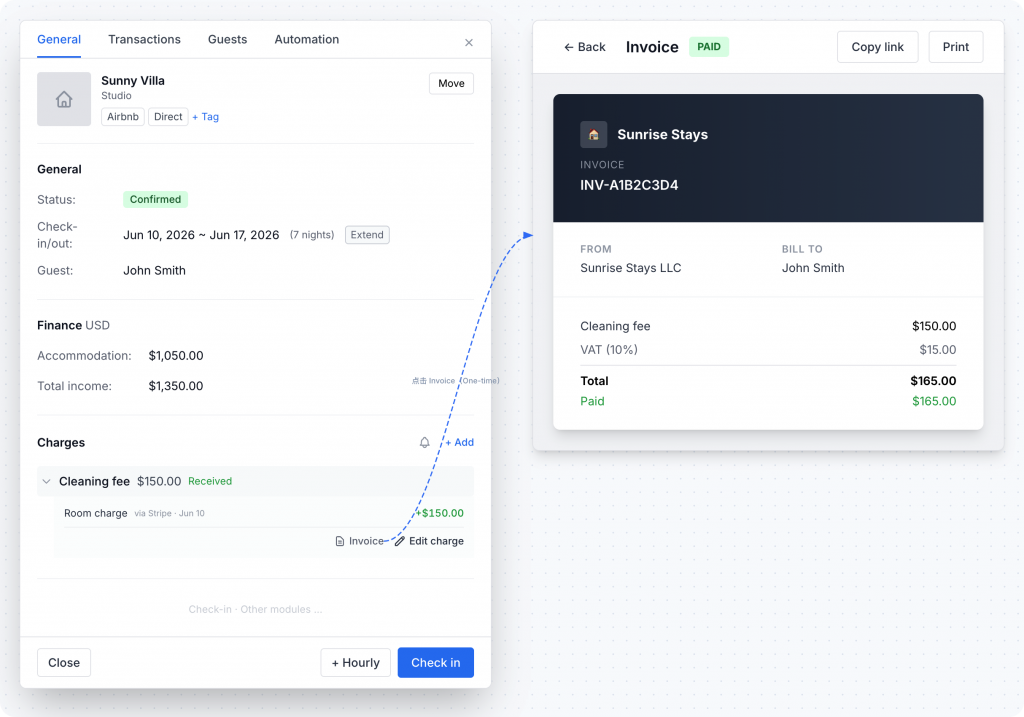
For a one-time charge:
- Open the reservation detail page.
- Go to the
Chargessection. - Expand the charge.
- Click
Invoicein the charge action area.
For a recurring charge:
- Open the reservation detail page.
- Expand the recurring charge.
- Find the specific period or instance.
- Click the Invoice icon on that instance row.
Each recurring instance has its own Invoice. There is no charge-level summary Invoice for a multi-instance charge.
Share the Invoice Link
From the host preview:
- Click
Copy link. - Send the link to the guest by your preferred channel.
You can also include {{invoice_link}} in messages and notification templates where the template supports it.
What the Guest Sees
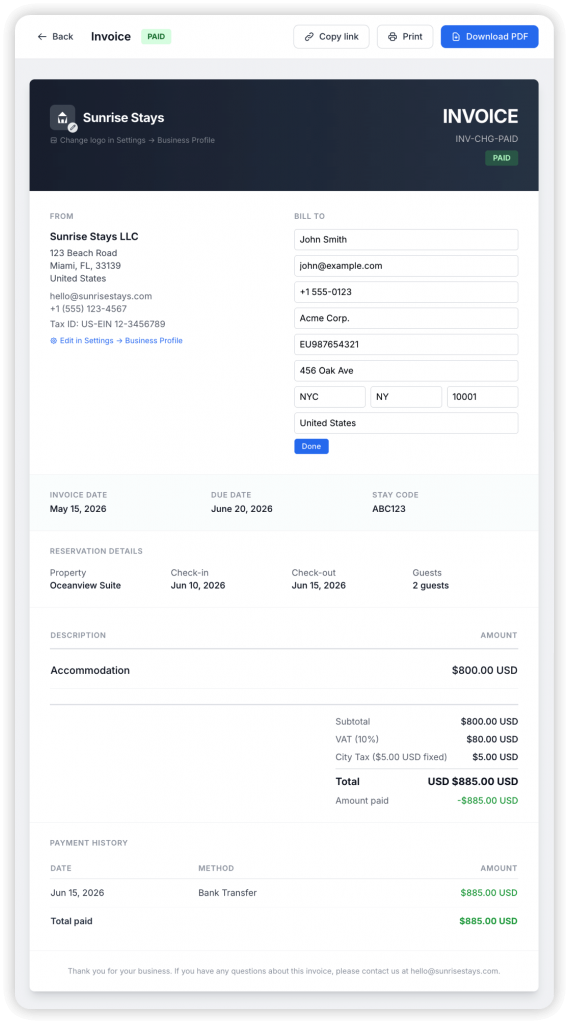
The Invoice shows:
- Invoice ID.
- Payment status, such as
UNPAID,PARTIALLY PAID,PAID,OVERPAID, orREFUNDED. - From information from your Business Profile.
- Bill to information for the guest.
- Stay details.
- Charge details.
- Tax lines, if configured.
- Payment summary.
- Payment history.
Guests can edit the Bill to area for reimbursement or company billing details. The information is saved for the same guest and reused on later Invoices.
Configure Business Profile Information
Invoice sender information comes from Settings > Business Profile.
Recommended fields include:
- Brand name.
- Legal name.
- Tax ID or VAT number.
- Company registration number.
- Contact email.
- Phone number.
- Business address.
- Brand logo.
When previewing an Invoice as the host, the editable logo and sender areas include links that take you to Settings > Business Profile.
Invoice Amount and Tax Rules
For a one-time charge, the Invoice uses the charge amount and tax settings.
For a recurring charge, the Invoice uses the selected instance amount and tax settings.
If Amount is tax-inclusive is enabled, the entered amount already includes tax. If it is not enabled, tax is added on top of the subtotal.
Payment Status Updates
The Invoice is a live document. When a guest pays or a payment is recorded, Hostex updates:
- Payment status.
- Amount paid.
- Balance due.
- Payment history.
 English
  Chinese