How to View, Record, and Edit Reservation Income and Expenses
The reservation Finance module is used to manage reservation payout information and reservation transactions.
Open Finance
- Open the reservation detail page.
- Go to the
Generaltab. - Find the
Financesection below the main reservation information.
Finance includes:
Payout: booking channel payout amount and receipt status.Transactions: income and expense records related to the reservation.
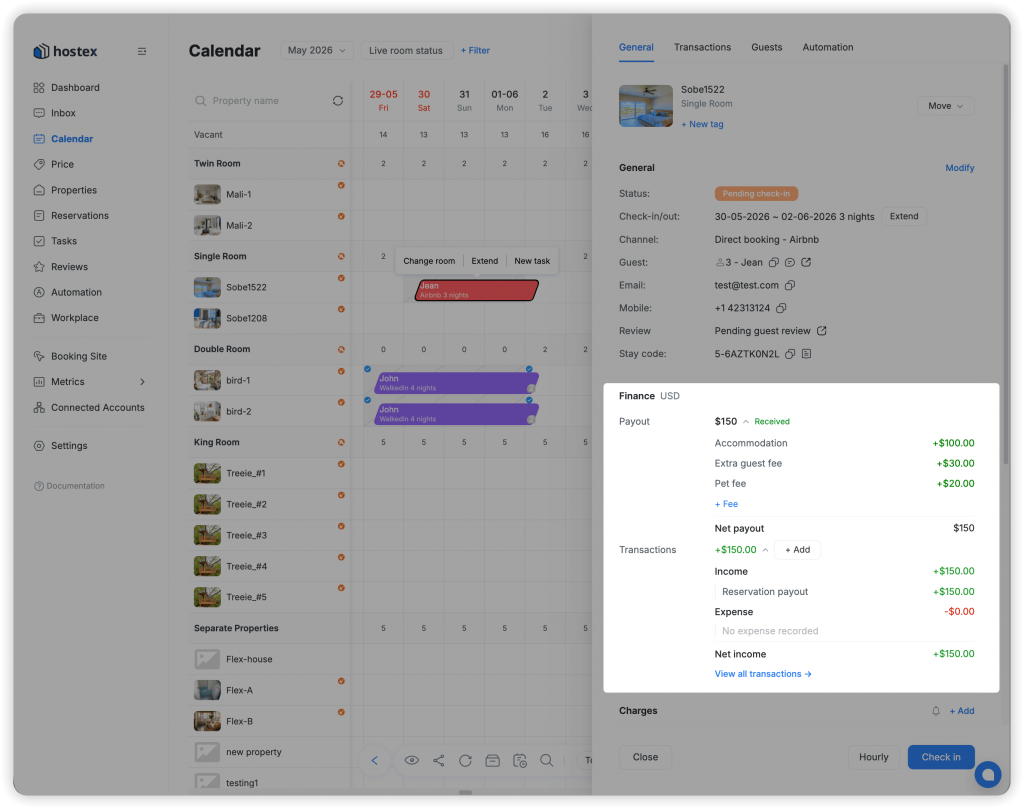
Understand Payout
Payout shows the expected amount from a booking channel, such as Airbnb or Booking.com.
The payout status is based on income transactions linked to the payout:
Unreceived: no linked Accommodation income exists.Partial: linked Accommodation income is greater than zero but less than payout.Received: linked Accommodation income is equal to or greater than payout.Excess: linked Accommodation income is greater than payout.
Only income recorded from the payout entry is linked to that payout. Other Accommodation income records do not change the payout status.
Record Payout Income
When payout status is Unreceived or Partial, Hostex shows a record-income action next to the status.
- Click the record-income action.
- Hostex opens the add transaction modal.
Typeis locked toIncome.Categoryis locked toAccommodation.- Enter payment method, amount, time, notes, and attachments as needed.
- Save the transaction.
The saved income transaction is automatically linked to the payout.
Edit Payout Amount
For channel reservations, payout breakdown is read-only. Use Adjust payout to change the total.
- Click
Adjust payout. - Enter the adjustment amount.
- Save.
Hostex adds a Payout adjustment line and recalculates Net. The adjustment cannot reduce the payout below the original channel net amount.
For manual reservations, payout is editable inline. You can edit source rows directly, add fee rows, or delete fee rows except Accommodation.
View Transactions Summary
The Finance transaction summary groups records by category inside the Finance section. It helps you see income and expenses without opening the full transaction list.
The category Accommodation replaces older terms such as room revenue or lodging revenue.
Open the Transactions Tab
- Open the reservation detail drawer.
- Click the
Transactionstab.
The tab shows:
- Total income.
- Total expense.
- Net income.
- Every transaction as a separate row.
Rows are sorted by creation time, newest first, and income and expenses are mixed in one list.
Add a Transaction Manually
- Open the
Transactionstab. - Click
+ Add transaction. - Choose
IncomeorExpense. - Select a category.
- Enter amount, currency, payment method, time, notes, and attachments.
- Save.
Manual transactions are linked to the reservation. They are not automatically linked to a payout or charge unless created from that payout or charge entry.
Edit a Transaction
Click a transaction row to open Edit transaction.
For online transactions, such as Stripe or PayPal:
- Most fields are read-only.
- Notes and attachments can be edited.
- The payment breakdown can be expanded.
- The transaction cannot be deleted.
- You can use
Syncto refresh payment details.
For manual transactions:
- All fields can be edited.
- The transaction can be deleted.
Charge-Linked Transactions
Charge payments are also stored as transactions.
- Online charge payment creates an income transaction automatically.
Record paymentfrom a charge creates a linked income transaction.- Editing a linked charge income keeps its type and category locked where required.
Only linked transactions affect charge payment status.
 English
  Chinese