如何查看、记录和修改预订财务信息

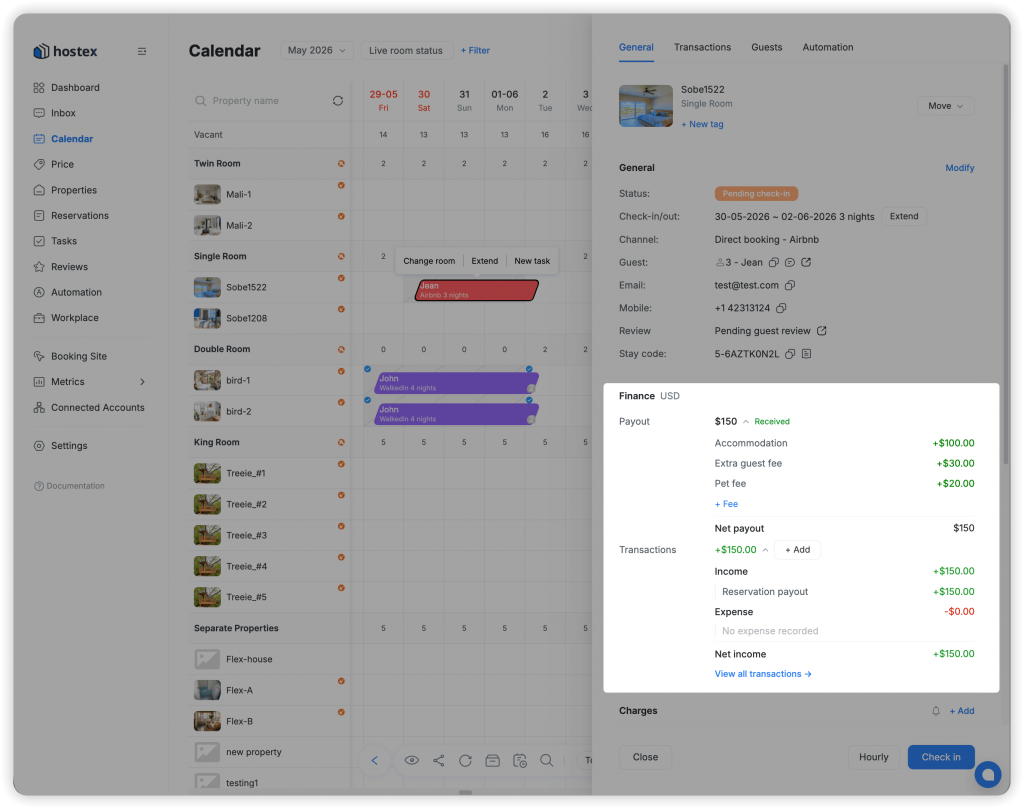
The Finance module is located in every reservation detail page, just below the General tab. It serves as your central hub for all financial operations on a reservation.

Here’s what you can do in the Finance module:

SectionWhat It Shows
PayoutChannel reservation amount, fee breakdown, and payment collection status
交易All income and expense records for this reservation

Part 1: Understanding Payout

Payout shows the expected revenue from a booking channel (Airbnb, Booking.com, etc.) and its current collection status.

The Payout section displays a detailed breakdown:

Item描述Type
Various FeesCleaning fees, service fees, taxes, etc.Positive (+)
CommissionOTA platform commissionNegative (−)
Payout AdjustmentManual increases or decreases to the payout totalPositive or Negative

The system calculates payment status by comparing the Payout amount against linked Accommodation income records:

StatusMeaning
Received ✓All income has been collected (income amount ≥ payout amount)
Partial ⚠️Some income collected, but not yet the full amount
Unreceived ⚠️No accommodation income has been recorded yet

⚠️ Important: Only income records created through the “Record Income” button on the Payout section (with category set to 住宿) are linked to and affect the payout status.


Part 2: Recording Income

Recording Income from Payout

  1. 金融 tab, locate the Payout section
  2. 点击 “创纪录的收入” button next to the Payout amount
  3. A popup appears with:
  • Type: Automatically set to “Income”
  • Category: Locked to “Accommodation” (cannot be changed)
  • Amount: Enter the payment amount received
  • 货币: Automatically matches the reservation currency
  • Transaction Time: Set the date/time of the payment
  • Payment Method: Choose from available options (Stripe, PayPal, Cash, Bank Transfer, etc.)
  • 笔记: Add any notes about this payment
  1. 点击 “Save” to record the income

✅ Income records created this way are automatically linked to the Payout and update the payment status.

Recording Other Income

To record income not related to the Payout:

  1. 交易 list, click “+ Add Transaction”
  2. Set Type to “Income”
  3. 选择一个 Category (e.g., “Extra services”, “Tips”, “Other”)
  4. Enter the amount and details
  5. 点击 节省

📝 These records appear in the Transactions list but do 不是 affect the Payout payment status.


Part 3: How to Modify Transactions

Editing a Transaction

  1. 交易 list, find the transaction you want to modify
  2. Click on the transaction to open the Edit Transaction popup
  3. You can modify:
  • Amount: Change the transaction amount
  • Transaction Time: Update the date/time
  • Payment Method: Change the payment method
  • 笔记: Add or update notes
  1. 点击 “Save” to apply changes

⚠️ Category is locked for Payout-linked transactions (Accommodation income) and cannot be modified after creation.

Refunding a Transaction

To process a refund:

  1. 交易 list, find the income transaction you want to refund
  2. 点击 “Refund” button next to the transaction
  3. The refund popup appears:
场地描述
Refund AmountEnter the amount to refund (max = original amount − already refunded)
Refund MethodChoose: Bank Transfer, Cash, or original payment method (Stripe, etc.)
笔记Add refund reason or reference number
  1. 点击 “Refund” to process

The refund creates a new Expense transaction linked to the original income record. The original income amount in the Payout status calculation is reduced accordingly.

💡 Visibility: The refund button is always visible on any income transaction with amount > 0 — not just on hover.


Part 4: Understanding Transactions

The Transactions List

The Transactions tab shows all financial activity for the reservation in one unified view:

  • Income Records — Shown in green (+)
  • Expense Records — Shown in red (−)
  • Transaction Time — When the transaction was recorded
  • Payment Method — How the payment was made
  • Related Entity — What this transaction is linked to (Payout or Charge)

Transaction Categories

The system uses a unified “Accommodation” category throughout, replacing historical naming conventions. All accommodation-related income is consolidated under this single category to simplify your financial tracking.


Part 5: How Transactions Link Together

Understanding how transactions are linked helps you trace payment flows:

Payout Links

Entry PointCreatesLinked To
“Record Income” button near PayoutAccommodation IncomePayout (updates status)
Manually created accommodation incomeAccommodation IncomeNot linked to Payout

Charge Links

Entry Point行动关联
Collect Payment → Online (Stripe/PayPal)Auto-creates income⛓️ Linked to that Charge
Collect Payment → Manual recordOpens popup to record⛓️ Linked to that Charge
Refund a linked incomeCreates expense⛓️ Linked to original Charge

Summary: Finance Module Quick Reference

Task在哪里How
View PayoutReservation → Finance → PayoutSee breakdown and status
Record IncomePayout → “Record Income” buttonEnter amount → Save
Create a Manual Payout AdjustmentPayout → “+ Add Adjustment”Enter positive or negative amount
View All TransactionsFinance → Transactions tabSee the complete list
Edit a TransactionClick on a transactionModify details → Save
Refund a TransactionClick “Refund” on income rowEnter amount → Confirm
Delete a TransactionClick transaction → “Delete”Confirm deletion

Important Rules and Behaviors

  1. Payout amount can only be ≥ the original channel amount. You can increase the payout through adjustments but never go below the source.
  2. Only linked income affects payout status. Manually created accommodation income (not from the “Record Income” button) does not update the payment status indicator.
  3. Category lock. Accommodation income created from the Payout “Record Income” button has its category locked to prevent accidental changes.
  4. Refund limits. You cannot refund more than the original payment amount minus any already-refunded amounts.
  5. Transaction timestamps. Set accurate transaction dates to ensure your monthly reports are correct.

Need help with your finances? Reach out to our support team anytime.

zh_CNChinese