

Managing a vacation rental on Booking.com can be highly rewarding, but it also comes with challenges. The Booking.com Extranet is the central hub for managing your vacation rentals, controlling listings, adjusting availability, and communicating with guests. However, many short-term rental hosts are not fully familiar with its features. As a result, they may miss opportunities or face unnecessary management difficulties.
In this guide, we will explain the Booking.com Extranet step by step. You will learn how to use it efficiently to optimize property visibility, increase bookings, prevent errors, and optimize your daily operations.
If you manage multiple platforms at the same time, the workload can grow quickly. That is why using a tool like Hostex is highly recommended. Hostex allows you to manage all your listings in one place. Its AI-driven system can automate over 70% of your daily management tasks, saving time for more important priorities. Plans start at just $4.90 per month.
What is the Booking.com Extranet?
The Booking.com Extranet is the backbone of your property management on the platform. It’s the online portal that allows vacation rental hosts to control nearly every aspect of their listing, from room details to guest communication. Think of it as your one-stop hub for managing bookings, pricing, availability, and much more.
Once you’ve logged in, the Extranet offers a wealth of features designed to give you complete control over your listing, ensuring that you can respond to changes in real-time and maximize your booking potential.
Key Features of the Booking.com Extranet:
- Room Information & Descriptions
Easily update and enhance the details of your property and rooms. From photos and amenities to descriptions and house rules, everything you need to showcase your property is within reach. - Pricing & Rates Management
Adjust your rates based on seasonality, market demand, and special promotions. You can set flexible rates, create discounts, or offer packages to attract more guests. - Availability Management
The Extranet makes it easy to update your availability calendar, ensuring that you never overbook or leave dates open unintentionally. Syncing your calendar across multiple platforms is also simple. - Performance Data & Analytics
Stay informed with real-time insights into your property’s performance. Track occupancy rates, bookings, and guest reviews to better understand what’s working and what needs improvement. - Reservation Management
Review, confirm, or modify bookings directly from the Extranet. Whether you’re dealing with cancellations, changes, or special requests, this feature helps you stay organized and efficient. - Guest Communication
Respond to guest inquiries and messages directly from the platform. The Extranet also allows you to customize your communication templates, making it easier to maintain a consistent guest experience.
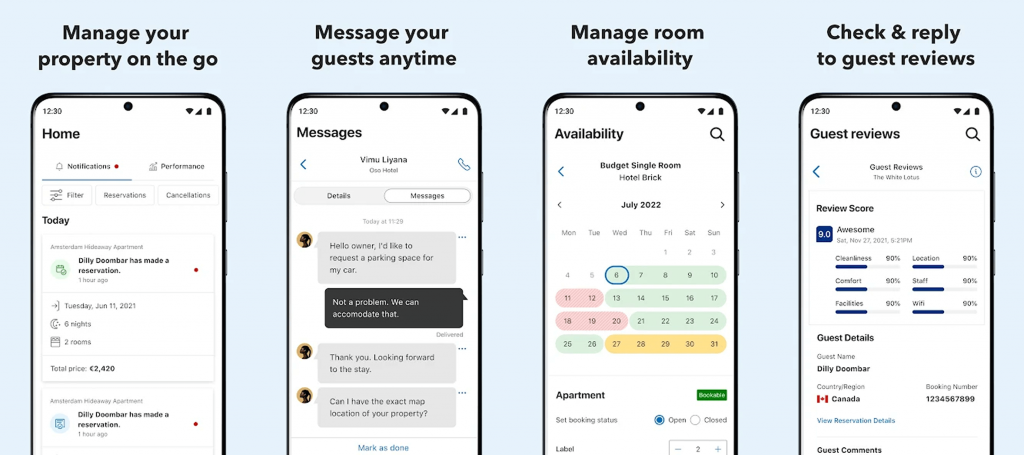
To manage your property on the go, download the Pulse app, which is available for both iOS and Android devices.
How to Get Started with the Booking.com Extranet
Starting with the Booking.com Extranet is straightforward, but understanding the key steps can help you hit the ground running. Here’s a step-by-step guide to get you up and running, ensuring your property is fully optimized for success.
1. Account Registration and Login
Before you can start managing your property, you first need to create your Booking.com Extranet account. If you haven’t registered yet, here’s what you need to do:
- Create an Account:
During your property registration with Booking.com, you’ll be asked to create an account. This will involve entering your property’s details, contact information, and bank account details for payments. - Email Verification:
Once you’ve entered your details, you’ll receive an email verification link. Simply click the link to verify your email address, which is crucial for your account’s security. - Set Up Security Measures:
Booking.com places a strong emphasis on account security. After logging in, you’ll be prompted to set up security questions and enable two-factor authentication (2FA). This adds an extra layer of protection to your account, ensuring that only authorized users can access your property’s details. You’ll receive a PIN either through the Pulse app or via SMS when you log in, providing an added level of security.
2. Setting Up Basic Information
After logging in, the first thing you’ll want to do is complete your property profile. To do this, head to the Property Details section. Here’s what to fill in:
- Property Type:
Select the type of property you’re renting out (hotel, apartment, house, etc.). - Room Descriptions:
Accurately describe your rooms, including size, bed configurations, and any unique features. The more detailed and appealing your descriptions, the more likely guests will be to book with you. - Facilities and Amenities:
Add all the facilities and amenities your property offers (WiFi, air conditioning, pool, etc.). Don’t forget to update this section regularly to reflect any changes in your offerings.
3. Setting Up Rooms and Rates
Once your basic information is entered, it’s time to set up your rooms and prices. Here’s how:
- Add Room Types:
Click on the Rooms & Rates tab and start by adding the different types of rooms or units you offer. For example, a 1-bedroom apartment, a suite, or a family room. Add a short description, room capacity, and upload images to make your listings more attractive. - Set Your Base Rates:
In the Pricing section, input your base rates for each room type. You can create different pricing structures based on peak seasons, weekdays, or last-minute offers. Remember to consider local market trends when setting your prices to stay competitive. - Define Cancellation Policies:
Set your cancellation policies for each room type. Booking.com gives you several options, such as non-refundable rates or flexible policies that allow guests to cancel up to a certain period before arrival. Choose what works best for your business model.

How to Use the Booking.com Extranet for Hosts
Now, we’ll break down the key functions in Booking.com Extranet and explain how to use them to their full potential.
1. Property Management
The first impression counts, so it’s crucial to provide clear and accurate descriptions of your rooms.
To do this, go to the Property tab and click on Room Types.
- You can add or modify room types like “Standard Double Room” or “Oceanview Suite”.
- Don’t forget to upload high-quality images for each room. Well-lit, professional photos will attract more guests. Use the photo management tool to arrange your photos in a way that highlights your property’s best features.
- Descriptions should emphasize key features such as size, view, amenities, and the experience you provide.
- You’ll also need to configure room facilities, such as the number of beds, bed types (double, queen, single), and the maximum number of guests each room can accommodate. These details are found under the Room Details section.
2. Pricing and Availability Management
Setting the right price and keeping your calendar up to date is essential to achieving maximum occupancy. Extranet gives you several tools for that.
- You can adjust your rates based on demand, the season, or events in your area. Use the Rates & Availability tab to set base prices and add discounts for specific dates, like weekends or holidays.
- If you manage multiple room types or listings, use the bulk editing tool to quickly adjust rates and availability across different rooms.
3. Promotions and Discounts
Running promotions is an excellent way to increase bookings during low seasons or attract a specific segment of guests.
Head to the Promotions section in the Extranet and click Create a Promotion.
Here, you can choose between a range of promotional offers, such as flash sales, early bird discounts, or advance booking discounts. Tailor these promotions to your property’s needs and target audience, whether that’s offering discounted rates for longer stays or promoting discounts for guests booking last-minute.
4. Performance Analysis and Reports
The Reports tab in the Extranet offers comprehensive insights into your property’s performance. You can review data on your occupancy rate, cancellation rate, and average daily rate (ADR). You can also see how your property ranks against competitors.
For instance, the Market Insights feature lets you compare your property’s performance with similar listings in your area, helping you identify where improvements can be made.
5. Booking Management
The Bookings tab lets you see all active, upcoming, and past bookings.
- You can view important details such as guest names, arrival dates, special requests, and payment status.
- If you need to make changes to any booking, you can easily modify details like the check-in/check-out date or room type directly from the Extranet.
6. Communication with Guests
The Extranet’s messaging tool allows you to send and receive messages from guests directly. You can use this feature to confirm booking details, provide check-in instructions, or answer any guest questions.
In addition, you can set up automatic replies for common inquiries (like check-in times or amenities offered) to save time. For frequent communication, such as thanking guests for booking or offering check-out instructions, you can create message templates.
7. Managing Guest Reviews
Regularly check your Guest Reviews section to stay on top of feedback.
Responding to reviews – both positive and negative – shows potential guests that you care about their experience.

Advanced Tips for Maximizing Your Booking.com Performance
To truly stand out on Booking.com, it’s not just about filling out your property details and setting a competitive price. You need to implement strategies that optimize your visibility, increase your booking rates, and streamline your operations.
1. Optimize Property Visibility
A higher ranking in Booking.com search results leads to more visibility, which in turn leads to more bookings. Here’s how you can make your property shine:
- Update Your Listing Regularly: Regularly refreshing your property’s information signals to Booking.com’s algorithm that your listing is active and engaged.
- Enhance Your Photos: Booking.com gives preference to listings with high-quality images. Ensure you’re using clear, well-lit photos that showcase everything from room details to unique amenities.
- Fill Out All Available Fields: Make sure every section of your property profile is complete, including room descriptions, amenities, and policies. Listings with more detailed information are prioritized by Booking.com’s algorithm, making them more likely to show up in search results.
If your property consistently delivers high performance, you may be eligible for Preferred Partner status, which significantly increases your visibility. To earn this status, you also need to focus on maintaining high guest ratings, fast response times, and offering competitive prices.
2. Adjust Prices Based on Demand
Dynamic pricing is one of the most effective tools for ensuring you’re charging the right rate at the right time. Here’s how to make it work for you:
- Market Demand: Use Booking.com’s market insights tool to track demand trends in your area. If demand is spiking, you can raise your prices accordingly. Conversely, if demand is low, you may want to offer discounts or promotions to boost bookings.
- Competitor Analysis: Booking.com offers a feature that lets you compare your pricing with similar properties in your area. Regularly check this feature to ensure your prices are competitive. However, make sure not to sacrifice quality for price; value is key for attracting loyal guests.
- Setting Minimum Prices: To avoid underselling your property, set a minimum price threshold. This ensures you don’t price yourself out of profitability while also making sure your rates stay competitive.
3. Leverage Guest Reviews for Continuous Improvement
Guest feedback is one of the most valuable resources for improving your property and service. Not only do positive reviews help your listing, but constructive criticism can highlight areas for improvement that you might have missed.
- Respond to Reviews: Engage with guests by responding to both positive and negative reviews. Address complaints professionally and show your commitment to improvement. When prospective guests see that you actively engage with your reviews, it builds trust and credibility.
- Analyze Guest Feedback for Insights: Booking.com allows you to break down feedback by category, such as cleanliness, staff service, or value for money. This data can provide actionable insights into areas that need attention.
- Create Action Plans Based on Reviews: Use guest feedback to create a list of actionable steps for improving the guest experience. Implement changes where necessary and monitor future reviews to see if improvements have been noticed.
4. Integrate Booking.com Extranet with PMS
If you manage multiple listings on Booking.com or other platforms, it can quickly become overwhelming. One way to streamline your operations is by integrating your Extranet with a property management system (PMS).
When you connect your Extranet to a PMS, updates made on the PMS automatically sync with your Booking.com listings. The system automatically adjusts your rates and blocks dates as needed, reducing the risk of overbookings.
PMS also offers a central dashboard that gives you a full overview of all your bookings and messages. This makes it easier to manage your operations, particularly if you’re working across several channels like Airbnb, Expedia, and Booking.com.
5. Use Automation Tools to Minimize Manual Work
Automation is a game-changer for vacation rental management, especially when juggling multiple platforms.
① Automated Messaging
While Booking.com Extranet offers basic automated messaging features, managing messaging rules across different platforms can quickly become a hassle.
Hostex centralizes all messaging in one place. Its AI-powered system automatically responds to guest inquiries, and helps you send personalized, triggered messages to guests at key touchpoints.
Whether it’s booking confirmations, check-in instructions, or post-checkout thank-you messages, it ensures that your guests receive timely, professional communication with minimal effort from you.
② Dynamic Pricing Automation
Dynamic pricing is a crucial element of maximizing your short-term rental revenue. While Booking.com Extranet allows you to adjust pricing manually, you have a better automation option.
Hostex integrates with the best dynamic pricing tools like Pricelabs, providing more advanced pricing strategies and real-time rate adjustments across multiple channels.
③ Automated Cleaning Task Management
Keeping track of cleaning schedules can be a challenge, particularly during peak seasons when bookings are frequent. With Hostex, cleaning tasks are automatically generated based on the guest’s reservation.
Hostex not only assigns cleaning tasks to the relevant staff but also sends automatic notifications to the cleaning team, ensuring that your property is always ready for the next guest.
Final Thoughts
Mastering the Booking.com Extranet is not a one-time task; it’s an ongoing process. By continually optimizing your listings, refining your strategies with real-time data, automating manual tasks, and focusing on delivering exceptional guest experiences, you’ll position your property for success on this global platform. Combine the power of the Extranet with a holistic property management approach, and you’ll be well-equipped to navigate the ever-changing landscape of vacation rentals.
Remember, the ultimate goal is not just about increasing bookings, it’s about building a sustainable business that thrives on guest satisfaction, operational efficiency, and adaptability. With the right tools, strategy, and mindset, the Booking.com Extranet can help you achieve just that.
 English
  Japanese
  Spanish
  Arabic
  French
  Russian
  German
  Portuguese
  Korean
  Italian
  Thai
Thai