How Do I Collect Security Deposits via Hostex?
Vacation rentals can sometimes incur damage, and it’s one of the risks of renting out properties. With Hostex, you can set up security deposits for bookings, so you can protect yourself from potential financial losses.
Step 1: Set Up a Deposit Payment Account
First of all, to collect security deposits, you must have a Stripe account connected to Hostex, and it must be explicitly enabled for this feature. Adding a payment account by itself is not enough.
- Go to
Settings. - Open
Payment accounts. - Add a new Stripe account or edit an existing one.
- Enable the
Use for depositoption. - Save your settings.
Important Notes regarding Stripe:
- Stripe charges a processing fee per successful fund capture. If a deposit is deducted, the deducted amount remains in your deposit account after these payment processing fees.
- Stripe’s hold on payment authorization is available for 7 days, so you need to capture funds within 7 days. If the authorization expires before you capture the funds, the funds are released and the payment status changes to canceled.
- When collecting a deposit via Stripe, only the corresponding amount on the guest’s bank card is temporarily frozen; the fund is not actually paid to you. If the guest’s booking exceeds 7 days and you need to extend the deposit hold period, or require specific instructions, please contact Stripe support directly for confirmation.
Step 2: Set Deposit Amount
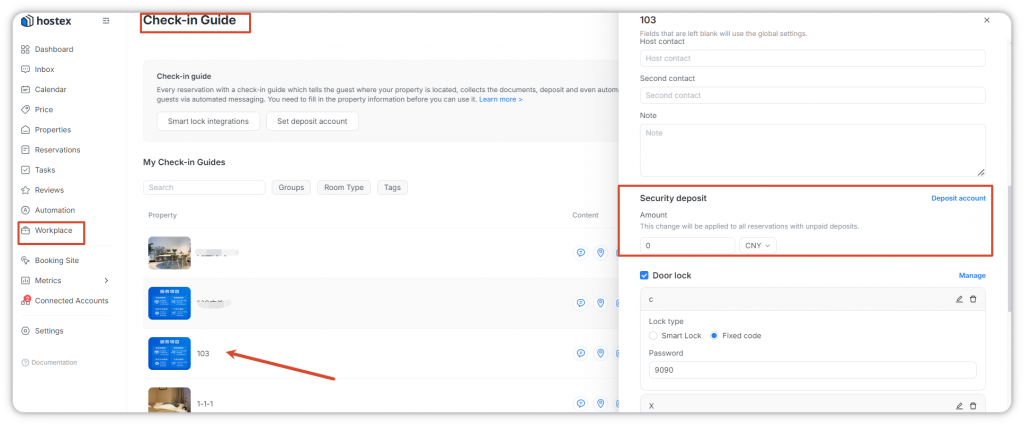
You can configure your deposit amounts flexibly through either the Check-in Guide or directly within a specific reservation.
Option A: Via Check-in Guide (Global or Property-level)
- Open the check-in guide settings (you can do this via Global settings or specific Property-level settings).
- Find the
Security depositsection. - Enter the deposit amount and confirm the currency.
- Save the guide. (Note: If no deposit account is configured, this field will be disabled, and Hostex will show a prompt linking you directly to
Payment accounts.)
Option B: Via Reservation Detail Page
- Open the specific reservation detail page.
- Scroll to the
Check-insection and findSecurity deposit. - If deposit collection is not yet enabled, click
Enable deposit functionand follow the prompt to link your payment account. - Once available, you can review or update the deposit amount directly from the reservation.
Step 3: Guests Pay the Deposit
- Send the check-in guide to your guests.
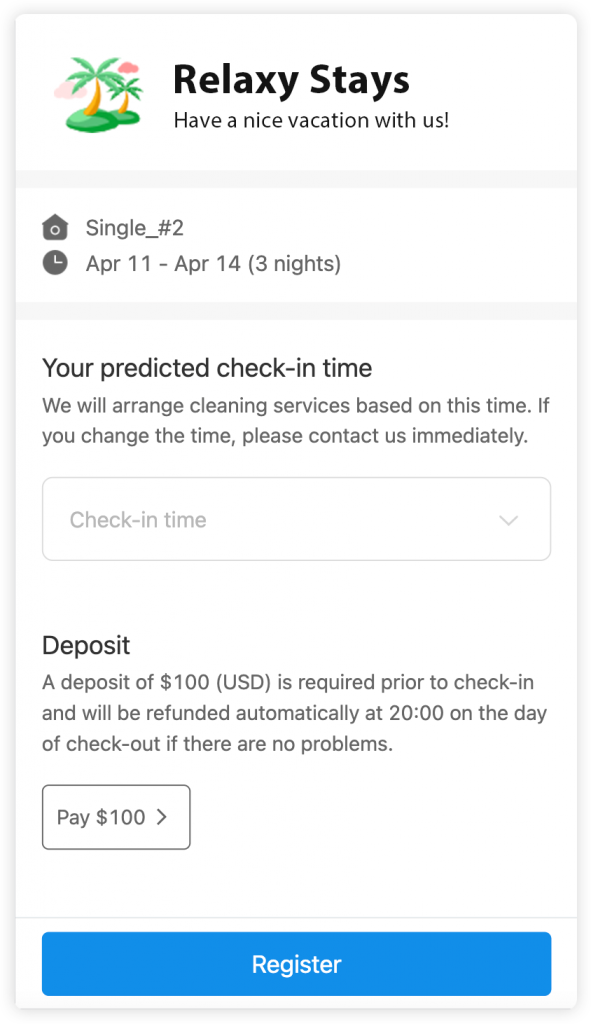
- When the guest opens the check-in guide, Hostex will request the security deposit through your configured Stripe account. The guest must pay the deposit as instructed first before they can unlock and view the address, door lock code, and other vital check-in information.
Tip: You can monitor deposit statuses anytime through deposit-related dashboard views, the calendar, or reservation detail pages.
How to adjust the security deposit refund time?
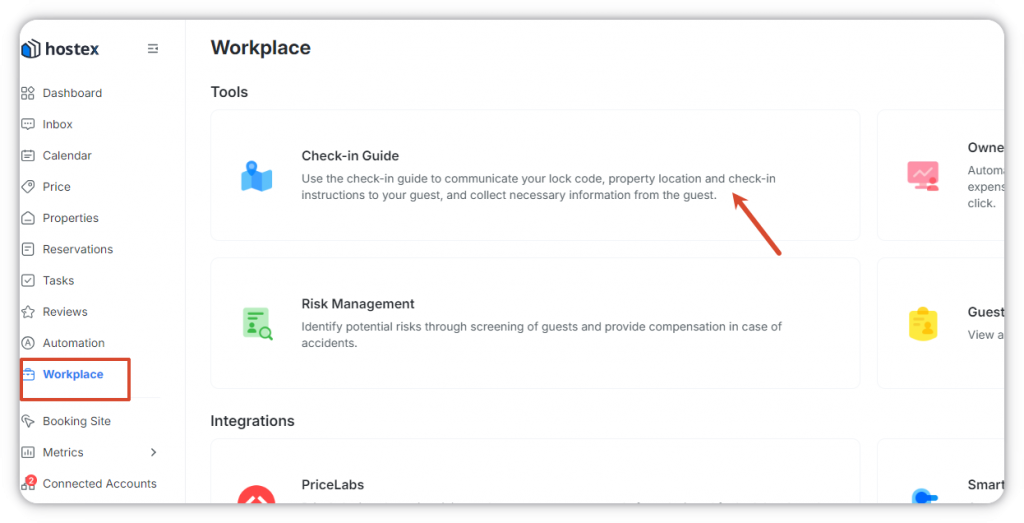
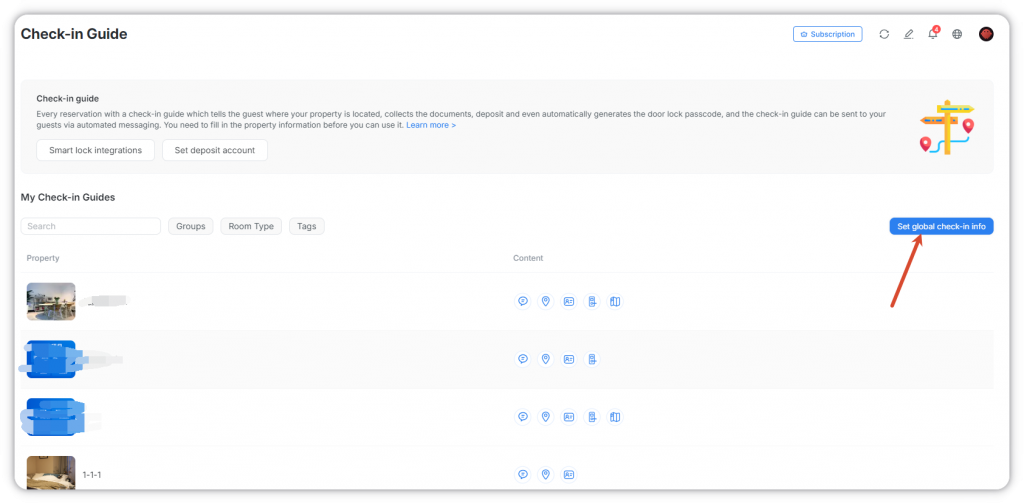
- Workplace — Check-in Guide — Set Global Check-in Info
- Configure the deposit refund time under the Security deposit section
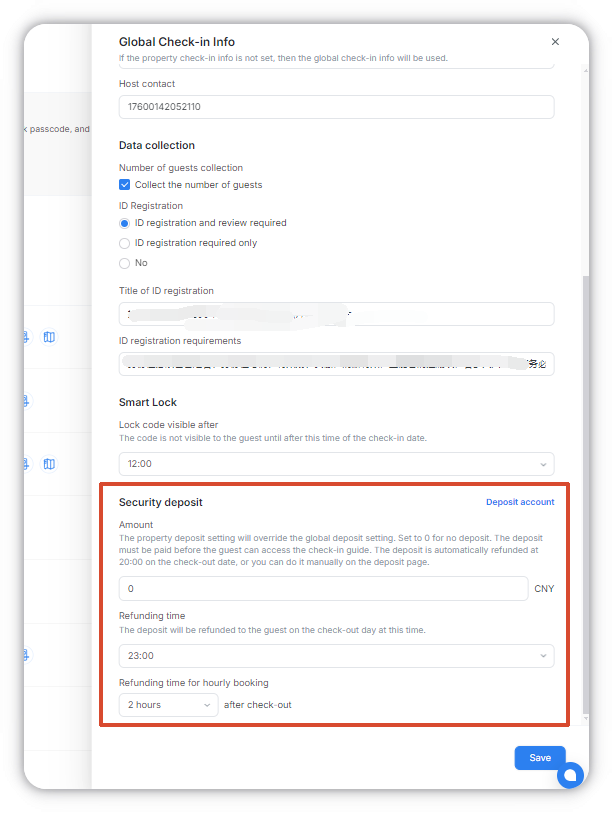
The security deposit refund time can only be set globally; separate settings for individual properties are not supported.
However, the deposit amount can be configured separately in the check-in guide of each property. The deposit amount set in a property’s individual check-in guide will override the global deposit amount setting.
How can the deposit be released/returned?
If everything goes smoothly during the stay, the deposit will be automatically refunded to the guest at the configured refund time, which is usually at 20:00 on the check-out date (as shown in the product tips).
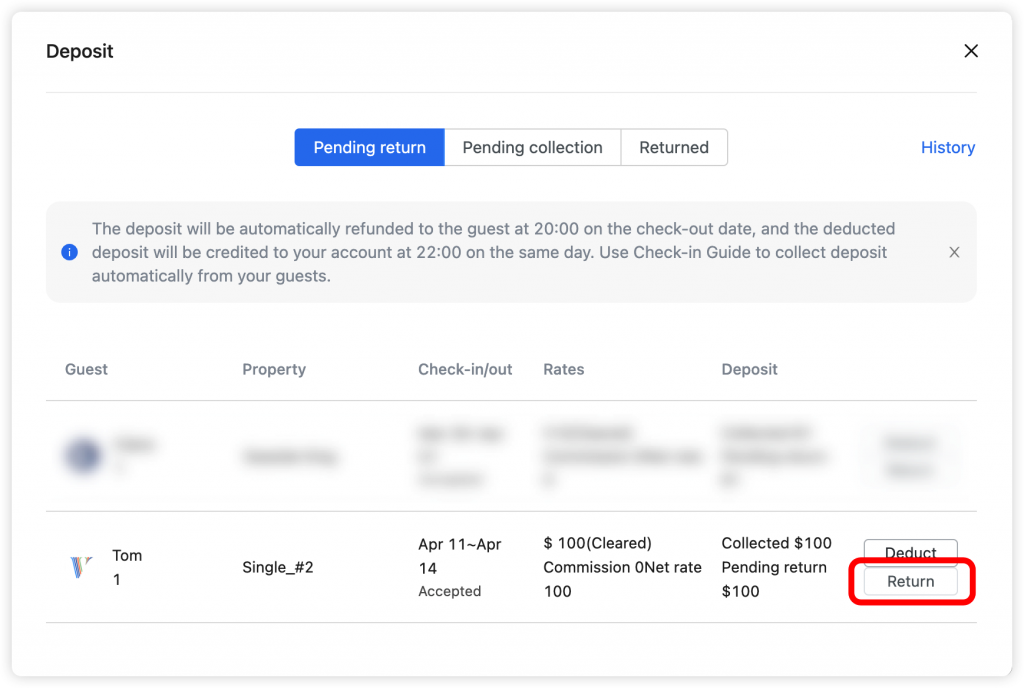
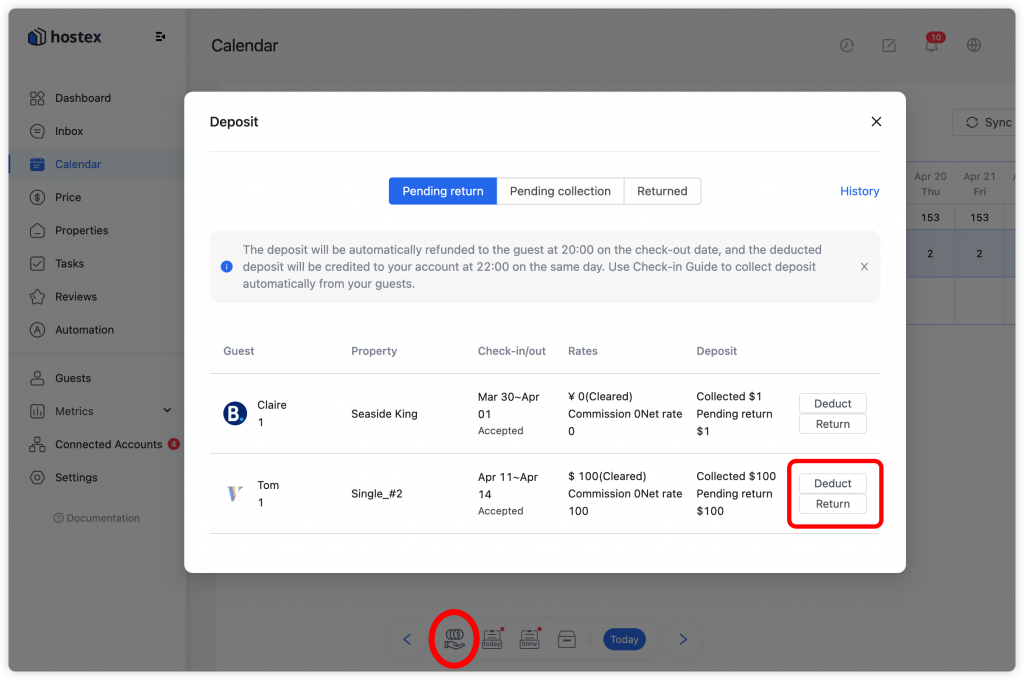
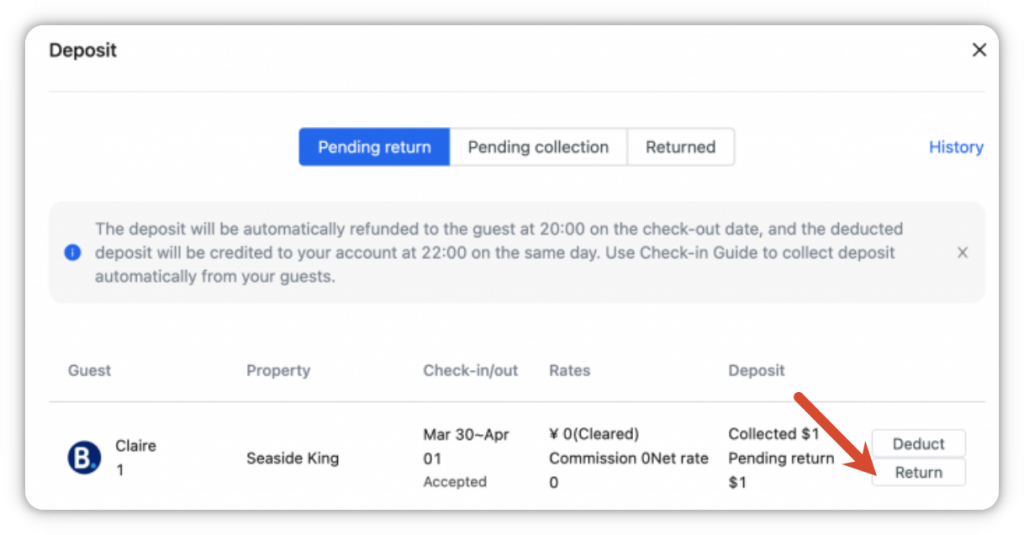
If your guests leave earlier than expected and you want to release the funds manually, you can do so through the Multi-calendar or deposit dashboard:
- Open the
Multi-calendaror deposit views on Hostex. - Click on the Deposit button below.
- Go to
Pending Return Deposit. - Find the deposit you need to refund.
- Click on the Return button.
How can I deduct the deposit?
In case of any property damage, you can deduct the required amount from the collected deposit before it gets auto-refunded.
- Open the
Multi-calendaror deposit views on Hostex. - Click on the Deposit button below.
- Go to
Pending Return Deposit. - Find the specific deposit you need to process.
- Click on the Deduct button.
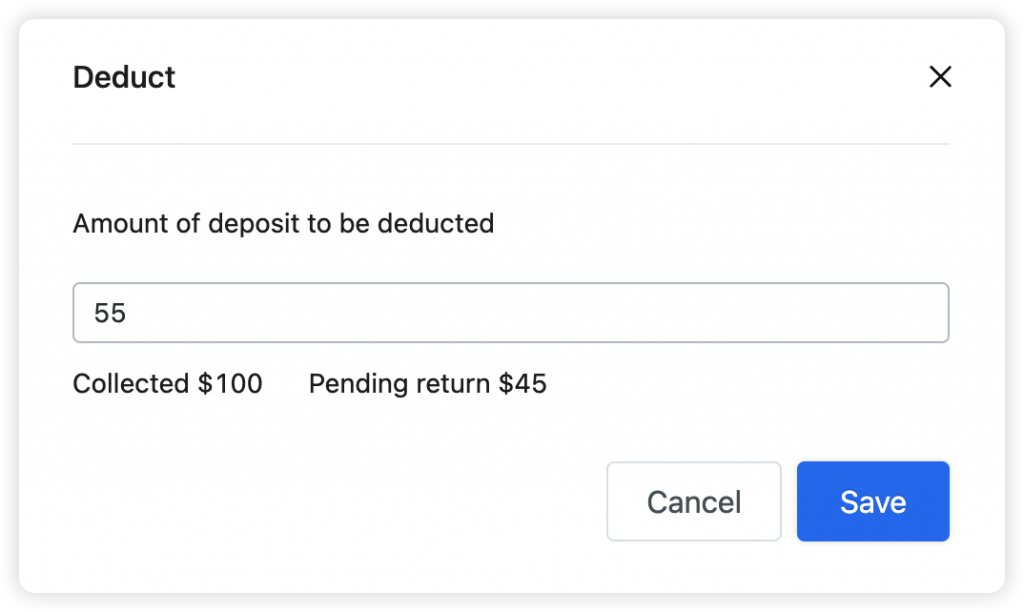
- Specify the preset amount of deposit to be deducted and click Save.
- Click Return, then enter the final refund amount to complete the procedure.
Note: You can continue to modify the deduction amount until the remaining deposit is automatically refunded to the guest at 20:00 on the check-out date. The finalized deducted deposit will be credited to your account at 22:00 on the same day.
Deposit Deduction Operation Rules
- The amount set in the Deduct step is only a preset amount for pre-deduction, not the final actual deduction.
- The deposit deduction will only officially take effect after you click Return and complete the subsequent procedures.
Operation Time Requirements
- For reservations within 7 days: You must complete the entire deposit deduction operation before 22:00 on the check-out date.
- For reservations longer than 7 days: Since Stripe’s authorization hold lasts 7 days, you must complete the online deposit deduction within the first 7 days of the reservation period, or choose to collect the deposit offline instead.
Troubleshooting
If the security deposit field is unavailable or greyed out, please check the following:
- Ensure a valid Stripe account has been added to Hostex.
- Double-check that the
Use for deposittoggle is explicitly switched on for that specific Stripe account. - Simply click the
Payment accountslink inside the system prompt to jump directly to the setup screen.
 English
  Chinese